Nexus Control is a simulation environment for governing AI agents that manage a portfolio of tokenised assets. Nothing here touches a real blockchain or real funds.
- Sign in. Use your credentials on the login page. A demo account is provided:
demo@nexuscontrol.io/demo1234. - Explore the dashboard. It gives you an at-a-glance overview of agents, pending approvals, portfolio value and today's activity.
- Run an agent to generate proposals, then review them in the Action Queue.
The landing page after sign-in. It shows:
- Overview cards — total agents, pending approvals, simulated portfolio value and actions taken today.
- Portfolio snapshot — a compact view of your holdings by value and allocation, with a link to the full portfolio.
- Recent activity — the latest entries from the audit log, with relative timestamps that refresh automatically.
Agents are the autonomous workers that analyse the portfolio and propose actions. There are four types:
| Type | Purpose |
|---|---|
| Yield Optimiser | Moves capital toward higher-yielding assets when yield is under-performing. |
| Portfolio Rebalancer | Corrects allocation drift back toward your target weights. |
| Risk Monitor | De-risks the portfolio when weighted volatility exceeds the threshold. |
| RWA Manager | Maintains your real-world-asset mandate and sweeps excess cash to custody. |
On this page you can:
- Create an agent — click New Agent, give it a name, type, status (active/paused) and description.
- Edit or delete an existing agent from its card.
- Run an agent — click Run Agent. Results appear inline: proposals queued for approval, auto-approved actions, or anything blocked by policy. Paused agents cannot run.
Policies are the guardrails every proposal must pass. There is one global policy (the default that applies to all agents) plus optional per-agent policies that override it for a specific agent.
Each policy controls:
- Max position size (USD) — the largest single action allowed.
- Allowed protocols — the venues an agent may use.
- Max daily trades — a cap on actions per day.
- Risk-score limit — proposals scoring above this are blocked.
- Require human approval above — any action larger than this must be approved by a person; smaller ones can auto-approve.
A full table of your tokenised holdings — price, quantity, value, yield, volatility score and current allocation versus target. A drift badge flags positions that have strayed materially from their target weight.
- Search the table with the box in the toolbar.
- Sort any column by clicking its header (click again to reverse).
- Prices, yields and volatility are static mock data. Only approved agent actions change quantities.
The human-in-the-loop control centre. Every proposal an agent generates lands here with its action type, asset, amount, risk score, status and reasoning.
- Filter by status using the pills (All, Pending, Approved, Auto-approved, Rejected).
- Approve a pending action to execute it against the simulated portfolio.
- Reject a pending action — you'll be asked for a reason, which is recorded in the audit log.
- Search and sort the table just like the portfolio.
A chronological, filterable record of everything that happens: agent runs, proposals, policy checks and blocks, approvals, rejections, portfolio changes and settings changes. Many entries include plain-English reasoning so decisions are explainable.
- Filter by agent, event type and date range.
- Use it for internal review, demos or compliance evidence.
Organisation-level configuration and simulation controls:
- Organisation settings — company name, default policy values and the portfolio volatility threshold used by the Risk Monitor.
- Reset simulation — restores the seed portfolio (~$1.10M across five assets) and clears the action queue and audit trail. This cannot be undone.
- Set your guardrails. Review the global policy (and add per-agent policies where you want tighter limits).
- Run an agent from the Agents page.
- Review proposals in the Action Queue — approve the ones you're happy with, reject the rest with a note.
- Check the portfolio to see the effect of approved actions.
- Audit anything in the log, filtered by agent, event or date. Reset the simulation from Settings when you want a clean slate.
The live platform keeps the exact same governance model you see in this simulator — agents propose, policies filter, humans approve, and everything is audited. The difference is that the mocked pieces are replaced with real connections:
Production walkthrough preview
A short visual summary of how governed autonomy looks in practice across policy checks, approval queues, and explainable logs.
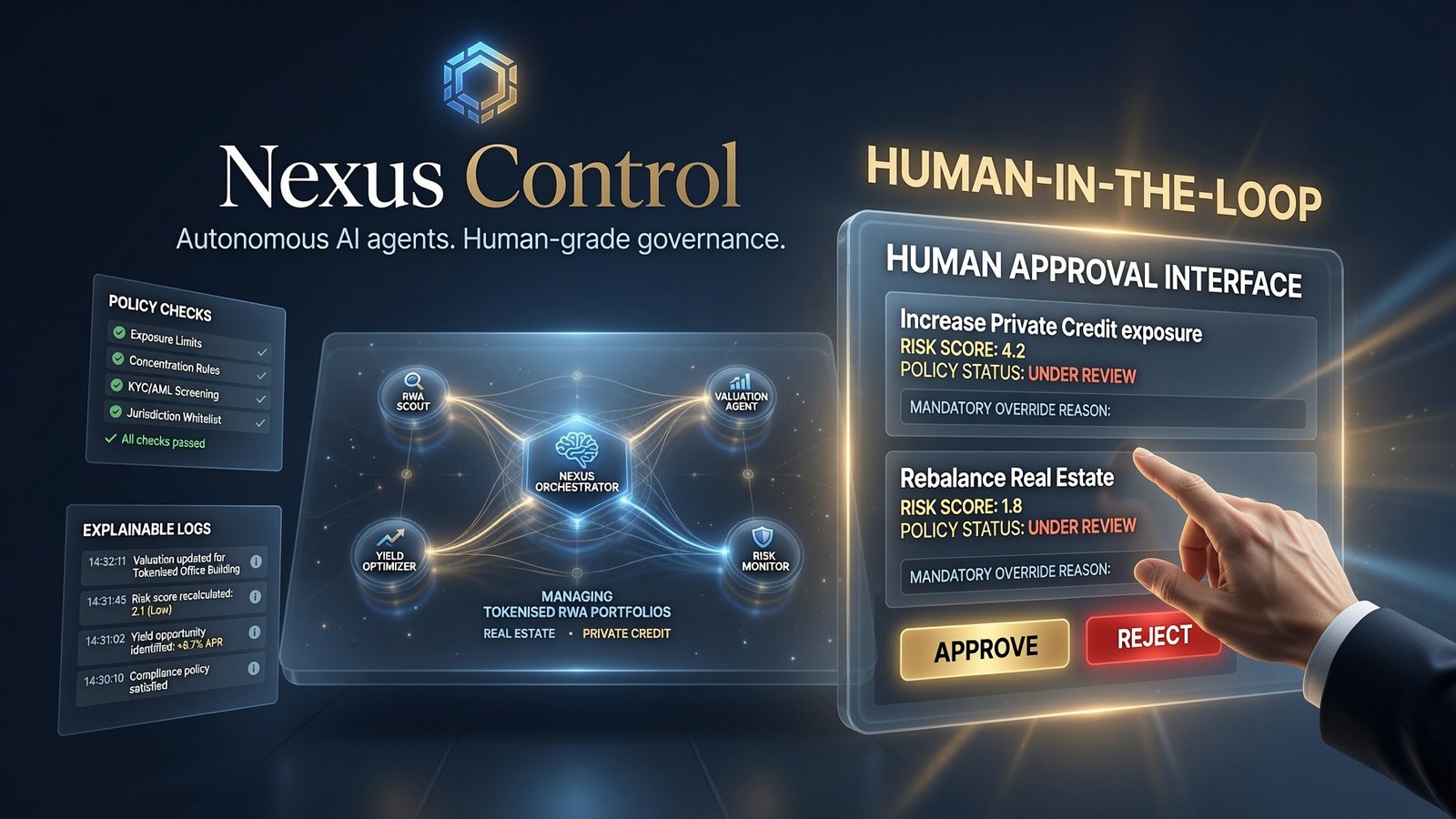
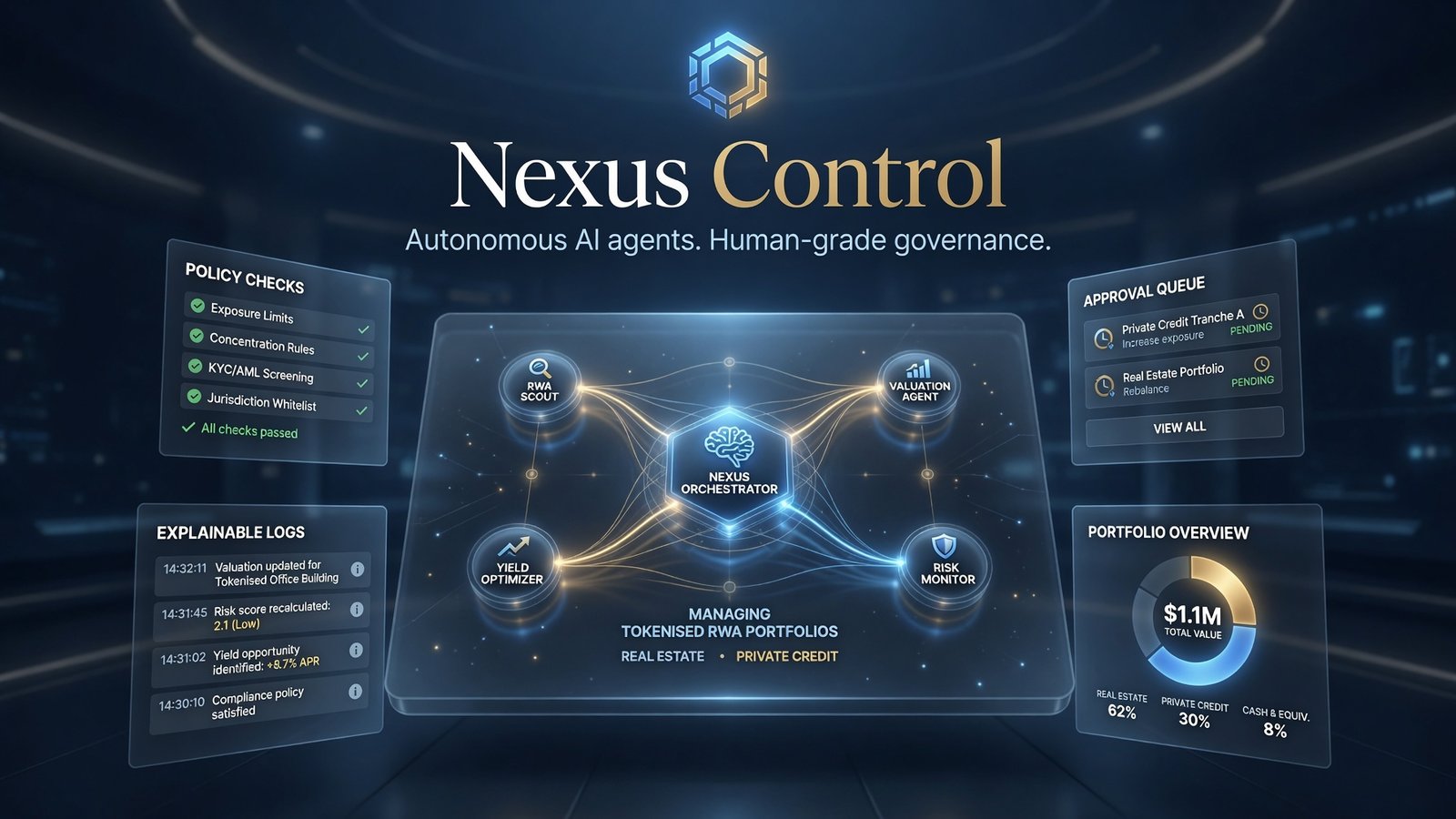
High-level workflow
flowchart LR
  A["Market & portfolio data"] --> B["AI agents
(LLM reasoning)"]
  B --> C["Action proposals
risk score + reason"]
  C --> D{"Policy engine
limits & allow-lists"}
  D -- "Above threshold" --> F["Human approval"]
  D -- "Within policy" --> E["Auto-approve"]
  D -- "Violation" --> G["Blocked"]
  F -- "Approved" --> H["Custody signing"]
  E --> H
  H --> I[("Blockchain network")]
  I --> J["Portfolio update"]
  J --> K[["Audit & explainability log"]]
  F -. "logged" .-> K
  G -. "logged" .-> K
This diagram is deliberately high-level — it shows the flow of a decision from data to execution, not the internal engineering. Use the controls above to zoom or open it fullscreen. The human-approval and policy steps are the same controls you exercise in the simulator today.
Is any of this real money?
No. Everything is simulated — mock assets, mock prices, mock blockchain. No real transactions occur.
Why was my agent's proposal blocked?
It violated a policy — position size, risk score, daily trade limit or an unpermitted protocol. The audit log records the exact reason.
What's the difference between "approved" and "auto-approved"?
Approved means a human signed off in the Action Queue. Auto-approved means the action was within policy and below your approval threshold, so it executed automatically — still fully logged.
How do I start over?
Use Reset simulation on the Settings page to return to the seed state.
Need more help?
Reach the team for support, demos or partnerships.